Git Integration
Construct provides integrated Git-based storage for all projects, enabling version control and collaboration. This guide covers how to access and work with your project's Git repository.
Accessing the Git Repository
There are two ways to access your project's Git repository:
-
Through Construct:
- Click the Git icon in the left toolbar
- You'll be taken to the repository view for your current context:
- From a file: Opens that specific file in the repository
- From a project: Opens the project's root directory
-
Direct access:
- Visit git.construct.psiquantum.com ⧉
- Single sign-on (SSO) handles authentication automatically
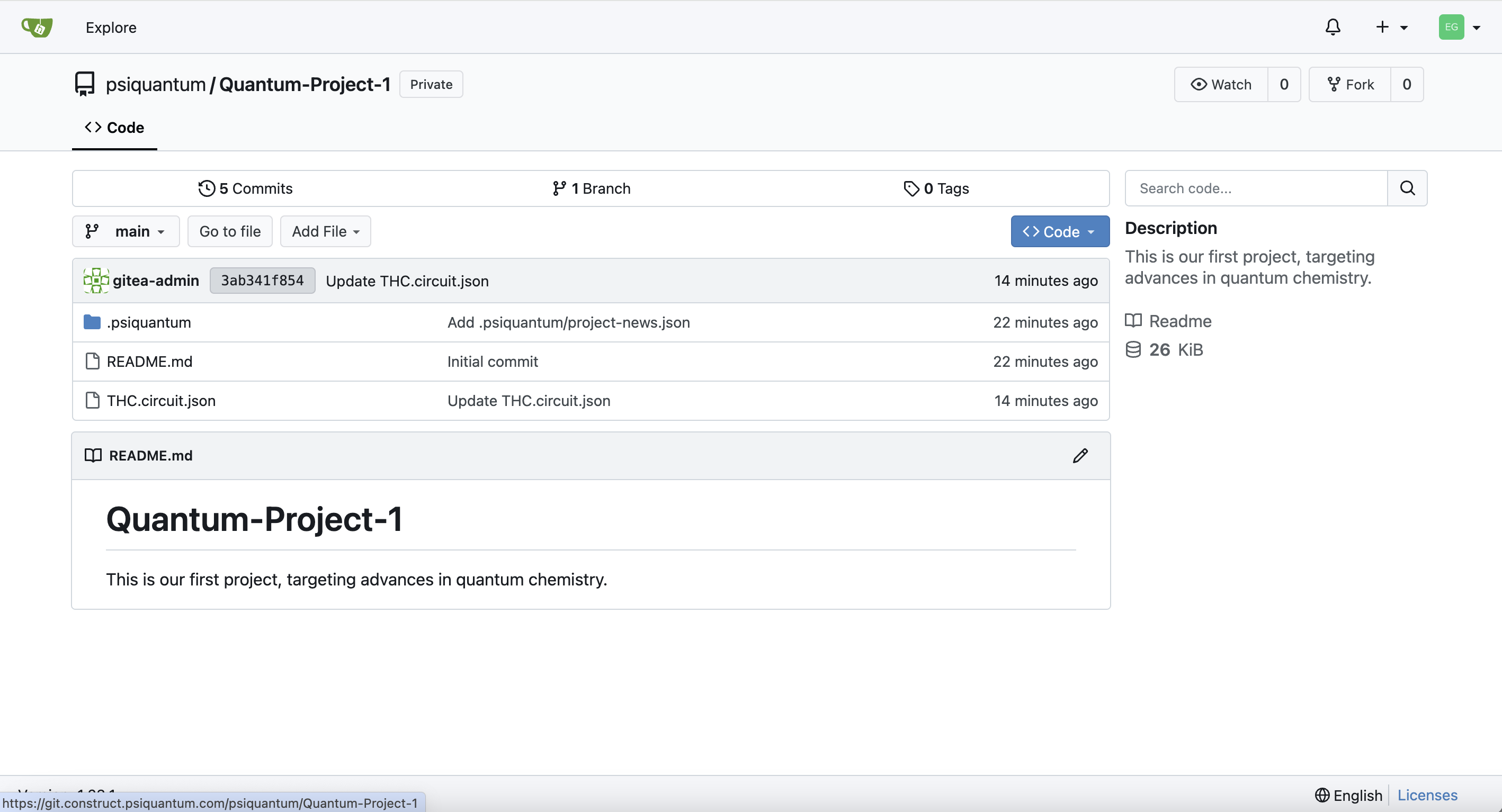
Repository Structure
Each Construct project has its own Git repository containing:
- Circuit files (.circuit.json)
- QRE analysis files (.qre-analysis.json)
- Project configuration
- Documentation and resources
Cloning Repositories
To work with repositories locally or in QDE:
- Click the Code button in the repository view
- Choose between HTTPS or SSH
- Copy the repository URL
Note
When using QDE, authentication is handled automatically. You don't need to set up additional credentials.
Local Development Setup
For local development outside QDE:
- Go to your profile settings
- Select Applications
- Create an access token:
- Click Generate New Token
- Give it a descriptive name
- Select required permissions
- Save the token securely
Use this token for authentication when cloning repositories locally.
Browsing Repositories
To view all available repositories:
- Click Explore in the top navigation
- Browse repositories you have access to
- Use the search and filter options to find specific projects
Development Workflow
When working with Git repositories:
- Create a new branch for your changes
- Make modifications through Construct tools
- Changes are automatically committed
- Use the Git interface to:
- Review commit history
- Browse file versions
- Compare changes
Tip
While many Git operations are available through the interface, some advanced features are intentionally limited to maintain project consistency.
IDE Integration
The repository interface provides quick launch options for popular IDEs:
- VS Code
Click the Code button and select your preferred IDE to open the project.
Note
Make sure you have the appropriate IDE installed locally when using these integration features.
Best Practices
- Create descriptive branch names
- Use project tools (Circuit Designer, Resource Analyzer) for primary development
- Leverage QDE for advanced development tasks
- Regularly sync changes when working locally
For more information about Developer Mode and advanced features, see Developer Features.