SSH Access
Advanced users can access QDE workspaces directly through SSH for command-line operations, automation scripts, and integration with local development workflows.
Prerequisites
- Active QDE workspace in running state
- SSH client installed on your local machine
- Basic familiarity with SSH key management
Advanced Feature
SSH access is intended for experienced users. Most QDE functionality is available through the web-based interfaces without requiring SSH access.
When to Use SSH Access
SSH access is useful for:
- Automation and Scripting: Running batch operations or automated workflows
- Local Tool Integration: Connecting local development tools to your QDE workspace
- Advanced Git Operations: Complex Git operations requiring command-line access
- Custom Environment Setup: Installing and configuring specialized development tools
- Remote File Transfer: Transferring files using scp, rsync, or similar tools
SSH Access Methods
There are several ways to access your QDE workspace via SSH:
1. Terminal within Development Interfaces
The simplest approach is using built-in terminal access:
VS Code Web/App Terminal:
- Open VS Code Web or connect VS Code App to your workspace
- Open command palette with
Cmd+Shift+P(Mac) orCtrl+Shift+P(Windows/Linux) - Type "Terminal: Create New Terminal" and press Enter
- You now have terminal access within your QDE workspace
Jupyter Lab Terminal:
- Open Jupyter Lab from your workspace panel
- Click File → New → Terminal
- Terminal opens in your workspace environment
2. Web Browser Terminal
Access terminal directly through the Construct web interface:
- Navigate to your QDE access page in Construct
- Click the Terminal button among IDE options
- Terminal opens in a new browser tab
3. Coder CLI SSH Access
For users who prefer command-line SSH access from their local machine, QDE provides built-in SSH instructions accessible from the Construct workspace interface.
Access SSH Instructions:
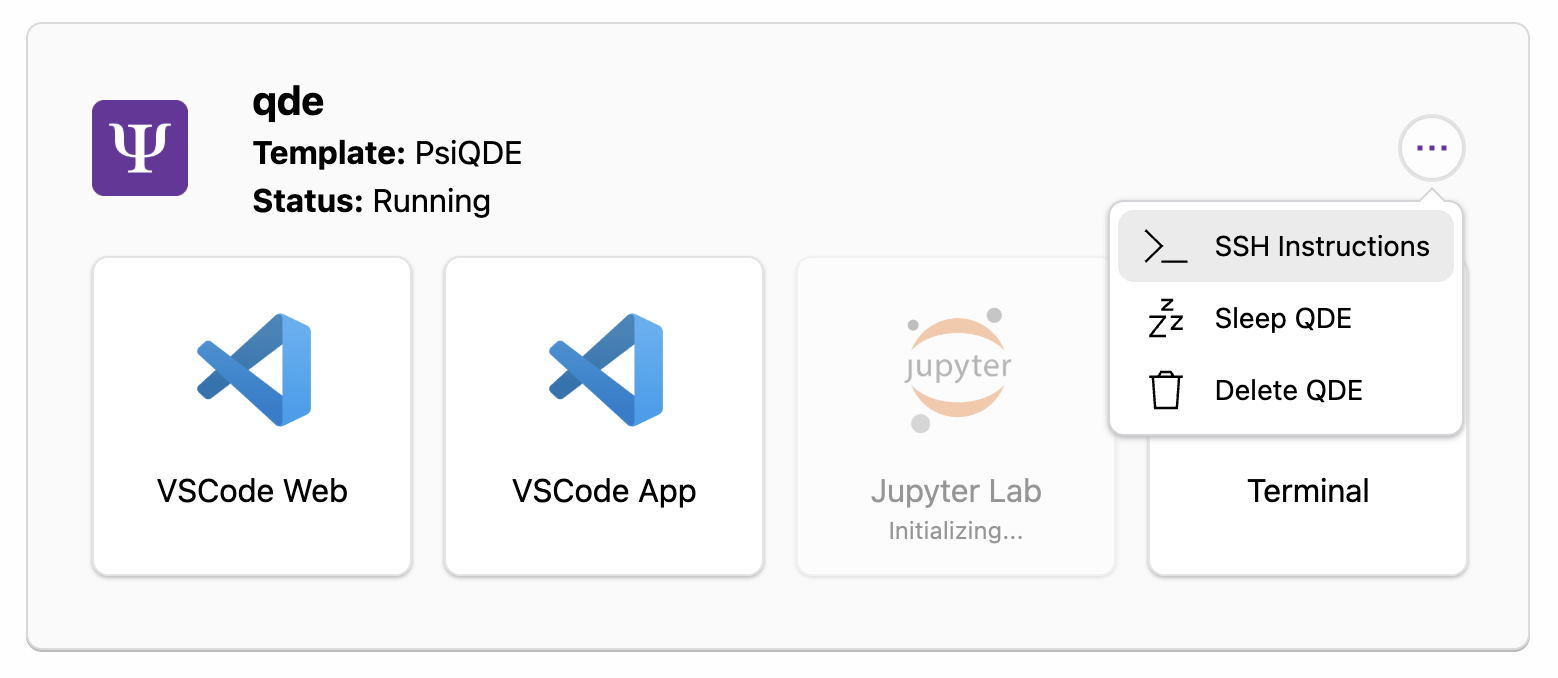
- From your running Construct workspace panel, click the menu button (three dots) to open the workspace options
-
Select SSH Instructions from the dropdown menu
-
Follow the step-by-step instructions in the modal dialog
Step-by-Step SSH Setup:
The SSH instructions provide three simple steps:
1. Install the Coder CLI:
2. Authenticate to the Coder server:
3. Connect to your QDE workspace:
(Replaceqde with your actual workspace name)
The Coder CLI handles authentication automatically and provides direct SSH access to your workspace.
Terminal Capabilities
All terminal access methods provide:
Full Shell Access: Complete bash shell with all workspace tools and libraries available.
File System Access: Read and write access to your workspace files and project directories.
Development Tools: Access to pre-installed quantum computing libraries, Python packages, and development utilities.
Git Operations: Full Git functionality for version control and repository management.
Package Installation: Ability to install additional Python packages via pip or conda.
Limitations and Considerations
Resource Limits: Terminal access is subject to the same CPU, memory, and storage limits as web interface access.
Full Root Access: Users have sudo access and can install system-level packages or modify system configurations. If you break your workspace beyond repair, simply delete the QDE and create a new one.
Network Access: Outbound internet access available for package installation and Git operations.
Common Terminal Use Cases
Long-Running Processes
Use screen or tmux for processes that need to continue after disconnection:
# Start a screen session
screen -S my-simulation

# Run your long-running process
python quantum_simulation.py

# Detach with Ctrl+A, then D
# Reconnect later with: screen -r my-simulation
File Operations
# Navigate your workspace
cd ~/projects/my-quantum-project

# Edit files with command-line editors
nano algorithm.py
vim quantum_circuit.py

# Check workspace usage
du -sh ~/
df -h
Git Workflows
# Standard Git operations work normally
git status
git add .
git commit -m "Update quantum algorithm"
git push origin main

# Clone new repositories
git clone https://github.com/example/quantum-repo.git
Integration with Local Development
File Transfer
You can drag and drop files through the interfaces of VSCode Web, VSCode App, and Jupyter Lab.
Alternatively, transfer files between your local machine and workspace using ssh:
Troubleshooting Terminal Access
Connection Issues
Workspace Status: Ensure your workspace is running (not sleeping) before attempting terminal access.
Browser Issues: For web-based terminals, try refreshing the page or using a different browser.
Coder CLI Problems: Re-authenticate if experiencing connection issues:
Performance Optimization
Network Latency: Terminal responsiveness depends on your internet connection to the QDE infrastructure.
Resource Usage: Monitor workspace resource usage to ensure optimal performance:
Security and Best Practices
Authentication: Terminal access uses the same secure authentication as your QDE workspace access.
Data Protection: All terminal traffic is encrypted. Always commit important work to Git repositories for backup.
Session Management: Terminal sessions are tied to your workspace state. Save work frequently and use Git for persistence.