File Browser
The File Browser provides a central location to manage all files within your Construct projects. It supports various file types and offers integrated previews for quantum circuits, QRE analyses, and common document formats. With integrated previews and version control, it ensures everyone stays in sync while working on a project.
Interface Overview
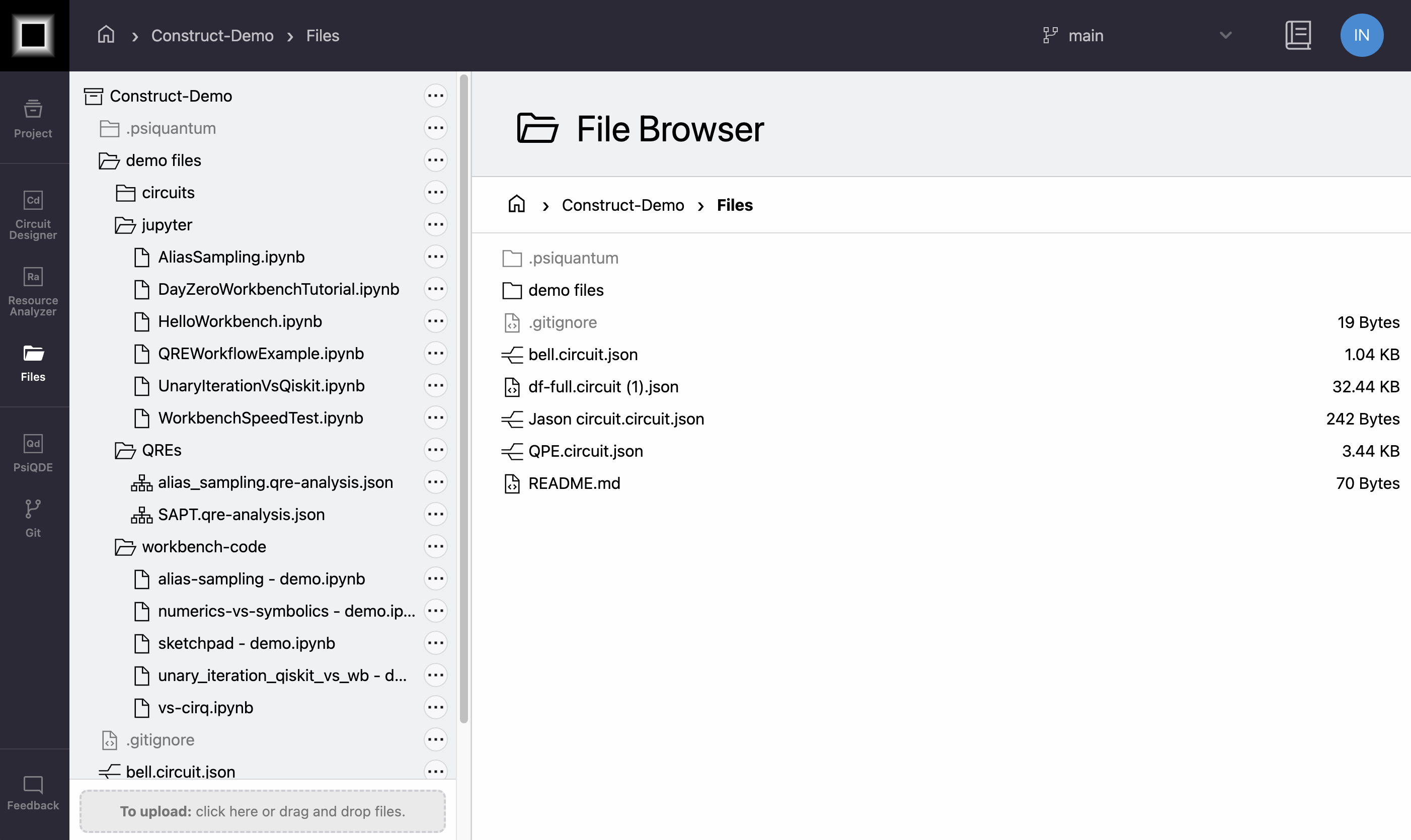 The File Browser showing project files and folders
The interface consists of:
- Left sidebar: Project file tree
- Main panel: File preview or folder contents
- Breadcrumb navigation at the top
- Download/Open button in the top-right (when applicable)
Supported File Types
| File Type | Extension | Opens In | Preview |
|---|---|---|---|
| Quantum Circuits | .circuit.json, .basq.diagram.json, .circuit | Circuit Designer | ✓ |
| QRE Analysis | .qre-analysis.json, .basq.dataset.json, .qre-analysis | Resource Analyzer | ✓ |
| Images | .png, .svg, .jpg, .gif | File Browser | ✓ |
| Text | .json, .txt, .md | File Browser | ✓ |
| Documents | File Browser | ✓ | |
| QRE Files | .qref | Resource Analyzer (coming soon) | - |
Managing Files
To perform actions on files or folders, click the three dots (...) menu next to the item:
File Options
- Open in new tab: Opens the file in its associated tool in a new tab
- Show/Open: Opens the file in its associated tool in the same tab
- Rename: Changes the file name
- Duplicate: Creates a copy of the file
- Delete: Removes the file
- Download: Downloads the file to your computer
Folder Options
- Project Settings: Modifies project settings (project root only)
- Add Demo Files: Add demo files into the project
- Rename: Changes the folder name
- Duplicate: Creates a copy of the folder
- Delete: Removes the folder
- Create Folder: Creates a new subfolder within the current folder
- Create Circuit: Create a new circuit diagram and open Circuit Designer
- Upload Files Here: Upload files into the selected folder
- Download Folder: Download the selected folder
Uploading Files
There are two ways to add files:
-
Click the "To upload" area at the bottom of the file tree:
- Select files from your computer's file browser
- Supports uploading multiple files at once
-
Drag and drop:
- Drag files from your computer
- Drop them anywhere in the File Browser
File Size
While there are no strict file size limits, very large files may take longer to upload and process.
File Organization
Files are organized in a hierarchical structure within your project. The file tree shows:
- Project root (named after your project)
- Folders and subfolders
- Individual files with type-specific icons
- File sizes (when viewing folder contents)
Git Integration
The File Browser is built on top of Git-based storage:
- All files are automatically version controlled
- File history is preserved
- Changes are tracked
- Supports advanced Git features in Developer Mode
See Git Integration for more details about using Git features.
Related Documentation
- Projects - Project management and organization
- Circuit Designer - Working with quantum circuits
- Resource Analyzer - Analyzing QRE files