Troubleshooting
This guide addresses common issues encountered when using QDE workspaces, development interfaces, and project workflows. Most issues can be resolved through simple troubleshooting steps or workspace operations.
Workspace Issues
Workspace Won't Start or Workspace in Error State
If your workspace fails to start or remains in "Starting" state for more than 5 minutes:
Access QDE Management: Turn on Developer Features in Profile Settings, go to the QDE page, and click on the QDE Management button in the top right corner. Click on your QDE and check the startup log for further details.
Retry Operation: Click the "Retry" button on the workspace panel to attempt automatic recovery.
Data Recovery: Important work should always be committed to Git repositories, which remain accessible even if workspace storage becomes unavailable.
Slow Performance
Performance issues can stem from various sources:
Network Connection: Verify your internet connection speed and stability. QDE workspaces require consistent connectivity for optimal performance.
Browser Resources: Close unnecessary browser tabs and applications that might compete for system resources.
Workspace Resources: Check for memory-intensive processes within your workspace:
# Check memory usage
free -h

# Identify resource-intensive processes
top -o %MEM

# Monitor disk usage
df -h
Restart Workspace: Sleep and wake your workspace to clear temporary files and reset resource allocation.
Authentication and Access
External Authentication Failures
If you encounter issues during the initial external authentication setup for the QDE, you may see an authentication failure screen.
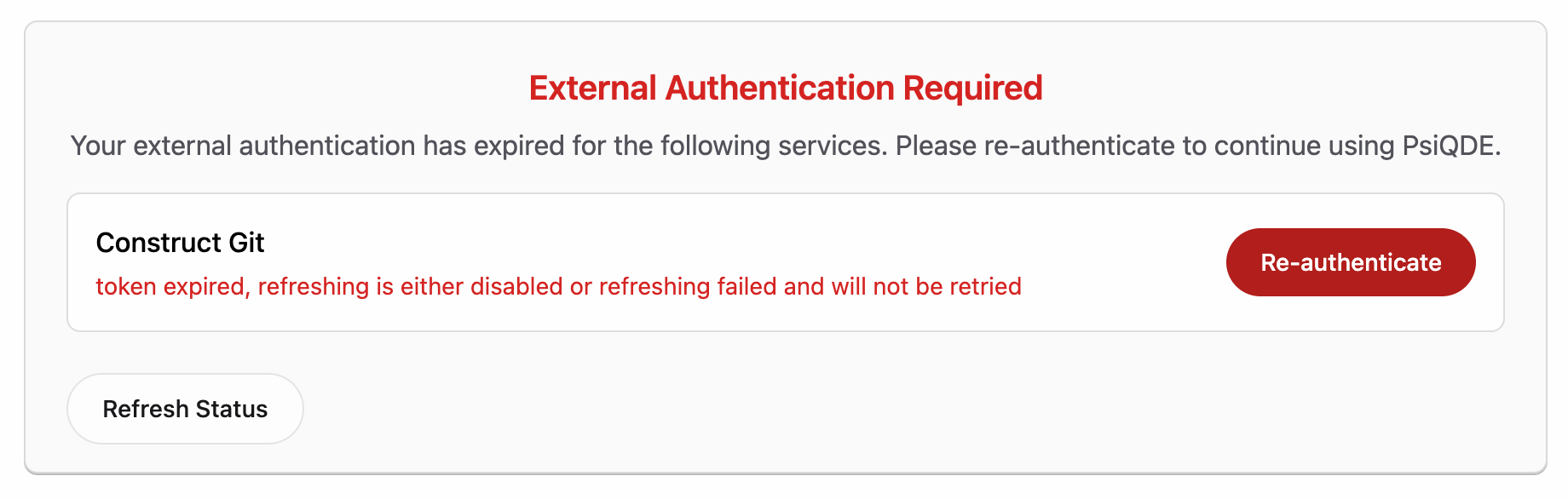
Common Causes:
- Network connectivity issues during authentication flow
- Browser blocking popup windows required for authentication
- Expired or revoked authentication tokens (authentication expires after 30 days of inactivity)
- Service temporarily unavailable
Resolution Steps:
- Re-authenticate: Click on Re-authenticate and follow the prompts.
- Check Browser Settings: Allow popups for construct.psiquantum.com
- Clear Browser Data: Clear cookies and cache for Construct domains
- Try Different Browser: Use Chrome in incognito/private mode
- Contact Support: If authentication continues to fail after trying these steps
30-Day Inactivity: Authentication automatically expires after 30 days of not accessing the QDE. When this happens, you'll need to complete the external authentication flow again. Your workspace data and files are preserved during authentication expiry - only access credentials expire.
Git Authentication Failures
The QDE automatically configures Git authentication for Construct repositories, but external repositories may require additional setup.
Construct Project Git Authentication: Construct repositories should work automatically. If authentication fails, try refreshing your browser session and accessing QDE again.
External Repository Access: For GitHub, GitLab, or other external repositories, configure authentication manually:
# Generate SSH key for external repositories
ssh-keygen -t ed25519 -C "your-email@example.com"

# Display public key for adding to external platform
cat ~/.ssh/id_ed25519.pub
Add the public key to your external Git hosting platform following their authentication documentation.
Personal Access Tokens: For HTTPS authentication with external repositories:
Enter your username and personal access token when prompted for credentials.
Development Interface Problems
VS Code Web Issues
Trust Warnings: VS Code Web may display security prompts about trusting workspace authors. Click "Yes, I trust the authors" to enable full functionality including extensions and terminal access.
Extension Loading Failures: If extensions don't load properly:
- Refresh the browser page
- Clear browser cache and cookies for the QDE domain
- Disable browser extensions that might interfere
- Try accessing from a different browser or incognito mode
Terminal Access Problems: If the integrated terminal doesn't work:
- Open terminal via command palette
- Press Ctrl+Shift+P (Windows/Linux) or Cmd+Shift+P (Mac)
- Type "Terminal: Create New Terminal"
File Permissions: If you cannot edit files, check permissions:
# Check file ownership
ls -la /home/coder/projects/

# Fix ownership if needed
sudo chown -R coder:coder /home/coder/projects/
VS Code App Connection Problems
Configured to Use QDE Workspace: VS Code App must be setup to access the remote QDE workspace by following these steps:
- Wake your QDE and click on VS Code App
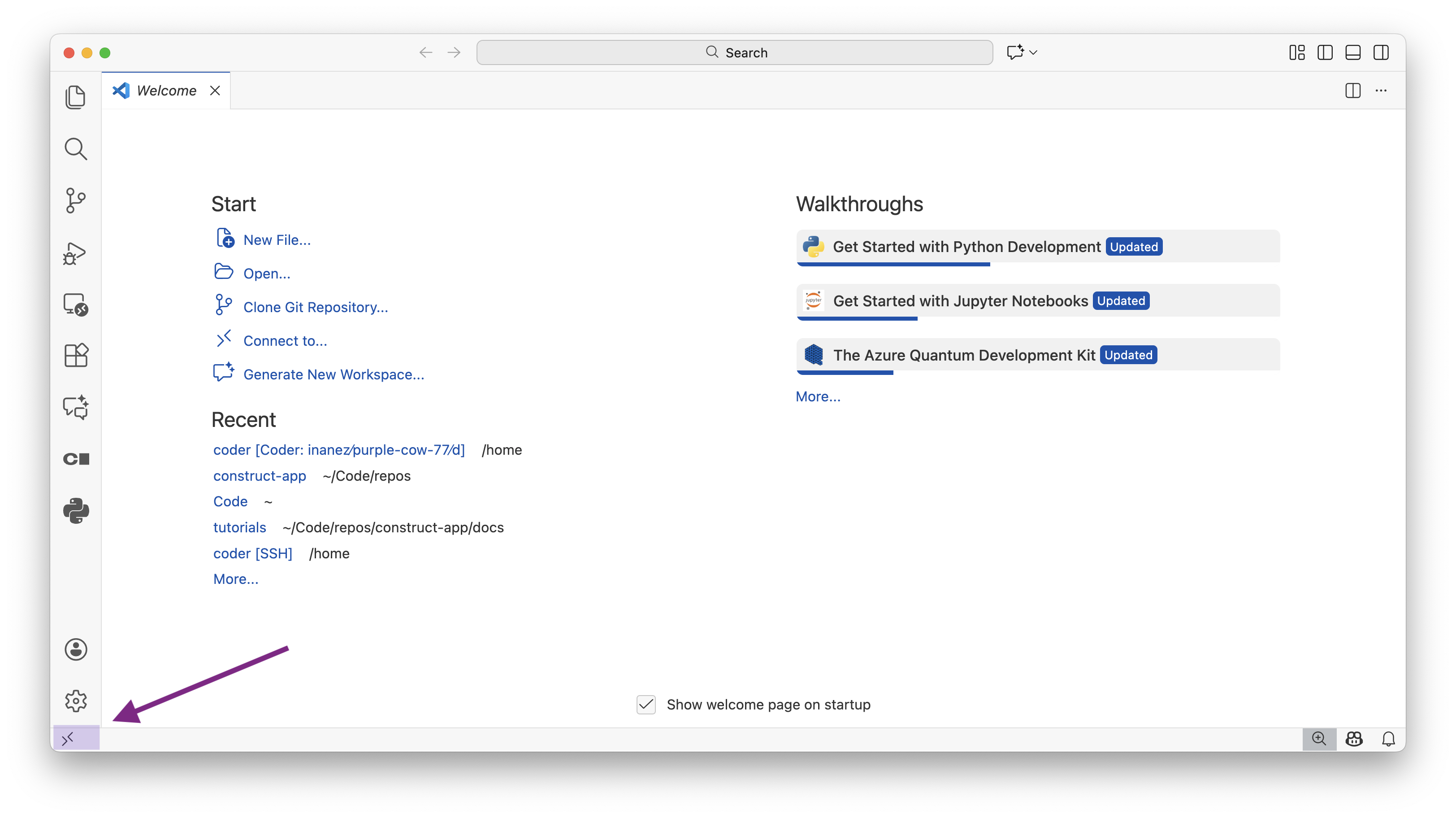
- In VS Code App, click on the connect to Remote Window button on the bottom left hand side of the application
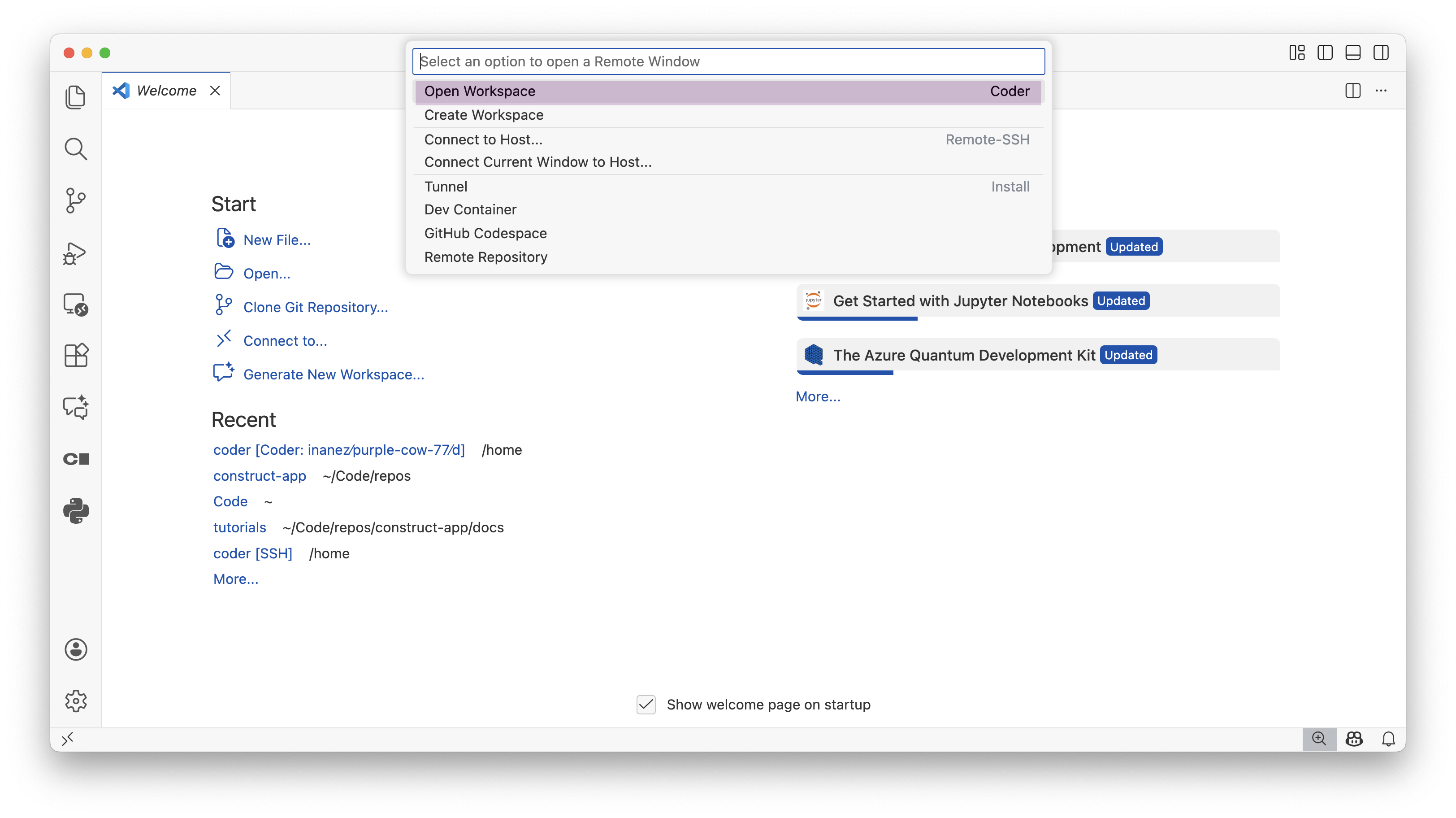
- Click on Open Workspace
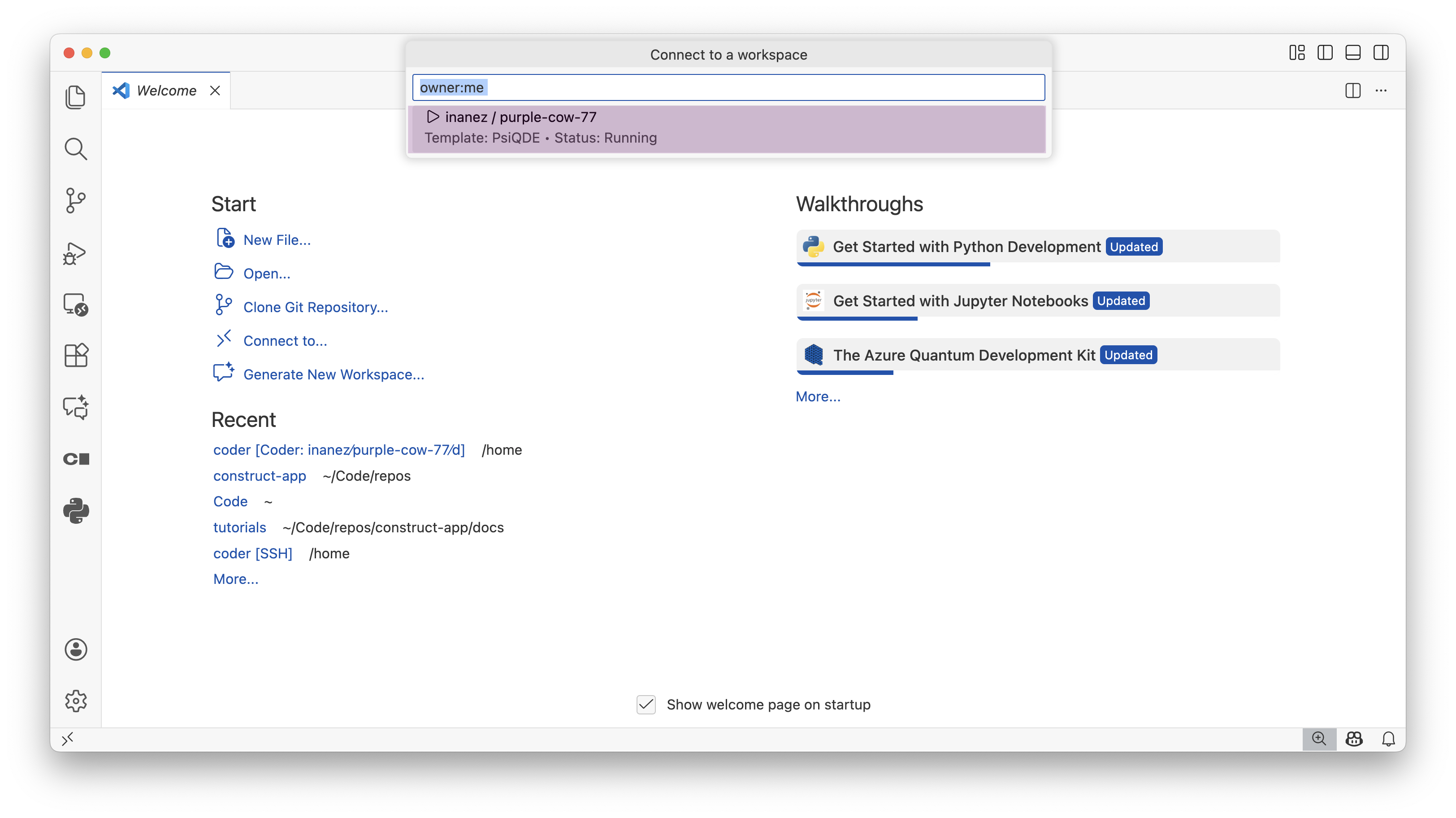
- Select your named QDE
- Use the QDE on VS Code App
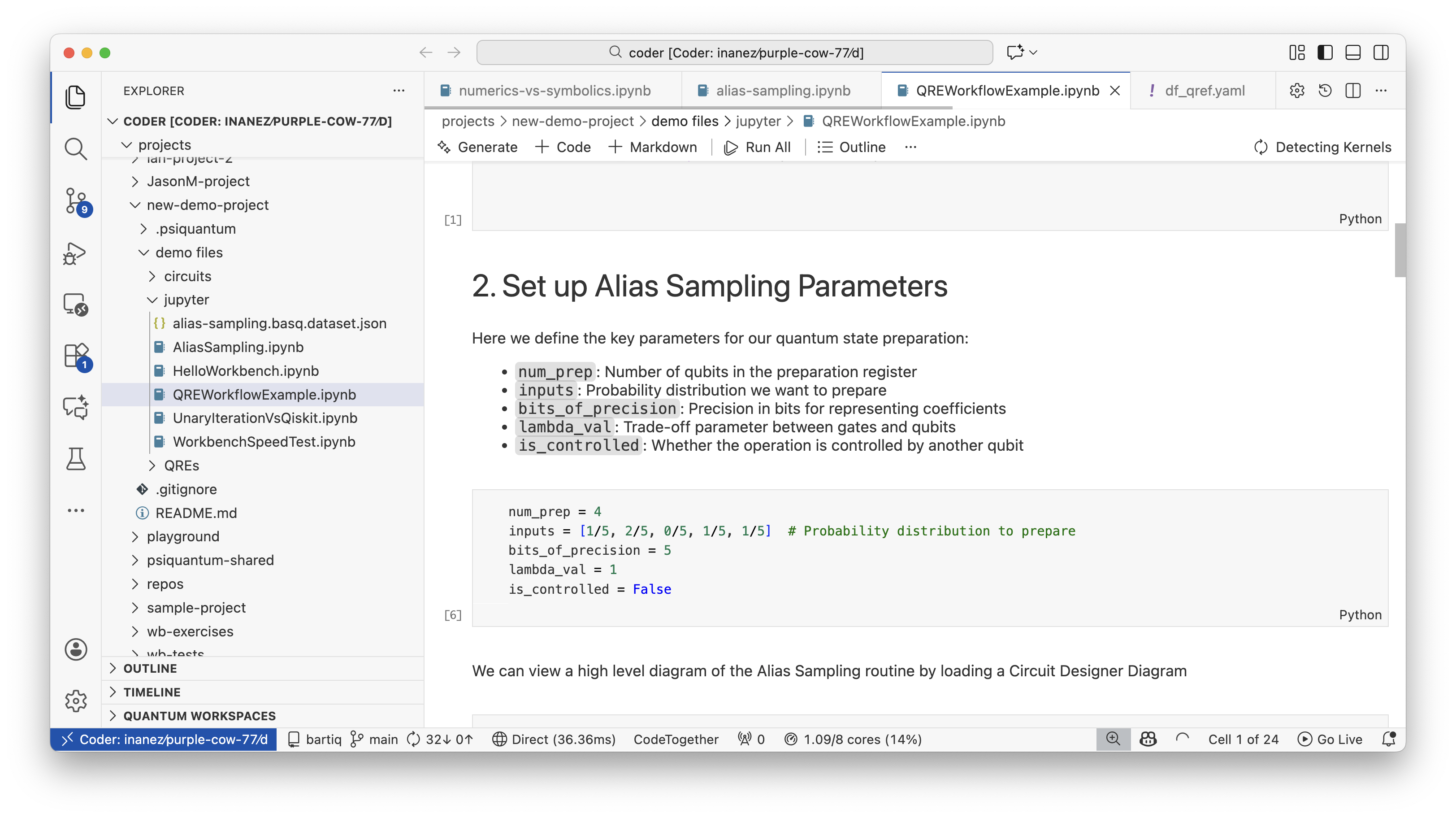
Remote Extension Installation: VS Code App requires the Remote Development extension pack:
- Install the "Remote Development" extension pack in your local VS Code
- Restart VS Code after installation
- Retry the connection from the QDE
Connection Timeouts: If connection attempts timeout:
- Check your local firewall settings
- Verify network connectivity from your local machine
- Try connecting from a different network location
- Contact IT support for corporate network restrictions
Version Compatibility: Ensure your local VS Code version is recent and compatible with remote development features.
Jupyter Lab Issues
Kernel Connection Failures: If Jupyter kernels won't start, first try refreshing the browser tab or reloading it from the Construct QDE panel. Otherwise:
Package Import Errors: If installed packages aren't available in notebooks:
# Check Python path in notebook
import sys
print(sys.path)

# Verify package installation
import pkg_resources
pkg_resources.get_distribution("package-name")
Notebook Won't Save: If you cannot save notebooks:
Package Installation Problems
pip Installation Failures
Permission Errors: Install packages in user space:
Network Connectivity: If package downloads fail:
# Test PyPI connectivity
ping pypi.org

# Try alternative index
pip install -i https://pypi.org/simple/ package-name
Dependency Conflicts: Resolve version conflicts:
# Check for conflicts
pip check

# Install specific compatible versions
pip install package-name==1.2.3
Data and File Issues
File System Problems
Disk Space Exhaustion: Clean up unnecessary files:
# Find large files
find /home/coder -size +100M -ls

# Clean Python caches
find /home/coder -name "__pycache__" -exec rm -rf {} +
find /home/coder -name "*.pyc" -delete

# Clear pip cache
pip cache purge

# Clean Jupyter checkpoints
find /home/coder -name ".ipynb_checkpoints" -exec rm -rf {} +
File Permission Issues: Fix ownership problems:
# Check ownership
ls -la problematic-file

# Fix ownership
sudo chown coder:coder problematic-file
chmod 644 problematic-file  # For regular files
chmod 755 directory-name    # For directories
Git Repository Problems
Large Repository Cloning: For repositories that fail to clone due to size:
# Clone with shallow history
git clone --depth 1 repository-url

# Or use sparse checkout
git clone --filter=blob:none repository-url
Corrupted Repository: Fix Git repository corruption:
# Check repository status
git status
git fsck

# Reset to clean state
git reset --hard HEAD
git clean -fd

# Re-clone if corruption persists
cd ..
rm -rf corrupted-repo
git clone repository-url
Network and Connectivity Issues
Browser-Related Problems
Cache and Cookies: Clear browser data for QDE domain:
- Open browser developer tools (F12)
- Go to Application/Storage tab
- Clear site data for QDE domain
- Refresh page and retry
Browser Compatibility: Use supported browsers:
- Google Chrome (recommended)
- Chromium-based browsers
- Firefox and Edge may have limited functionality
Ad Blockers and Extensions: Disable ad blockers and browser extensions that might interfere with QDE functionality.
Network Configuration
Corporate Firewalls: If accessing the QDE from corporate networks:
- Check with IT department about required domain whitelisting
- Verify WebSocket connections are allowed
- Test from personal network to isolate corporate restrictions
VPN Issues: Some VPN configurations may interfere:
- Try disabling VPN temporarily
- Check VPN DNS settings
- Contact VPN provider for configuration assistance
Getting Additional Help
Support Channels
Documentation: Check the complete QDE documentation for detailed information about features and workflows.
Technical Support: Contact PsiQuantum support for issues that cannot be resolved through standard troubleshooting:
- Include workspace ID and specific error messages
- Describe steps to reproduce the problem
- Mention any recent changes or installations
Diagnostic Information
When contacting support, gather relevant diagnostic information:
# System information
uname -a
python --version
pip --version

# Workspace information
whoami
pwd
df -h
free -h

# Recent system logs (if accessible)
tail /var/log/messages  # May require sudo access
Browser Information: Include browser version, operating system, and any console error messages visible in developer tools.
Timing Information: Note when the problem started and any correlation with recent changes or updates.
Preventive Measures
Regular Maintenance
Commit Frequently: Regular Git commits protect against data loss and enable easy recovery from workspace issues.
Monitor Resources: Keep track of storage and memory usage to avoid resource exhaustion.
Update Packages: Keep installed packages current while maintaining compatibility: