Developer Features
Developer Mode provides advanced features for users who need direct access to Construct's Git-based storage and branch management capabilities.
Enabling Developer Mode
- Click your profile icon in the top-right corner
- Select Profile
- Enable the Developer Mode toggle
- Click Save
Note
Developer Mode settings apply across all projects.
Branch Management
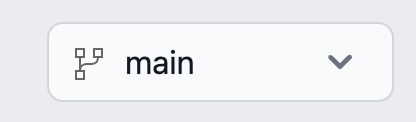
When Developer Mode is enabled, you'll see a branch selector in the project header:
Creating a New Branch
- Click the branch selector dropdown in the project header
- Select Create Branch...
- Enter a branch name in the dialog:
- Use letters, numbers, periods (.) and hyphens (-)
- Click OK to create the branch
Tip
Choose descriptive branch names that reflect the purpose of your changes.
Git Repository Access
Developer Mode adds a direct Git repository access icon to the left toolbar:

Clicking this icon opens PsiQuantum's Gitea instance where you can:
- View commit history
- Browse source files
- Access advanced Git features
Note
Single sign-on (SSO) automatically authenticates you when accessing the Git repository. If for some reason you are brought to the login screen, please click on Sign In with Construct.
For more information about working with Git-based storage, see Git Integration.